Turning off Thumbnail caching in Windows

I have become increasingly annoyed by the Thumbnail caching in Windows particularly when using network drives.

This default function of windows supposedly makes viewing thumbnails (small pictures of a larger picture) faster – if you change your view settings to view hidden files you will notice ‘thumbs.db’ files dotted around your folders. This file contains a cache of the thumbnails so that they do not need to be created everytime you view a folder full of photos.

If, like me, you hardly use the thumbnail view – being an oldie I prefer details view instead – you find the thumbs.db file stops you from renaming and deleting folders you just created on network drives. This is because the Windows Explorer process locks the thumbs.db file continuously.

You can turn off this functionality by editing the local group policy:

  • Click the Start orb
  • Enter gpedit.msc in the search box and hit Enter.
  • Expand User Configuration – Administrative Templates – Windows Components.
  • Click on Windows Explorer.
  • Right-click the entry “Turn off the caching of thumbnails in hidden thumbs.db files” and choose Edit.
  • Enable the setting.


Setting documents folder to network location in Windows 7

I believe changing your My Documents folder from the default system drive location to a network drive location is possible when the remote location is a Windows server file share. However, trying to connect to a NAS drive that might be based on Linux does cause problems.

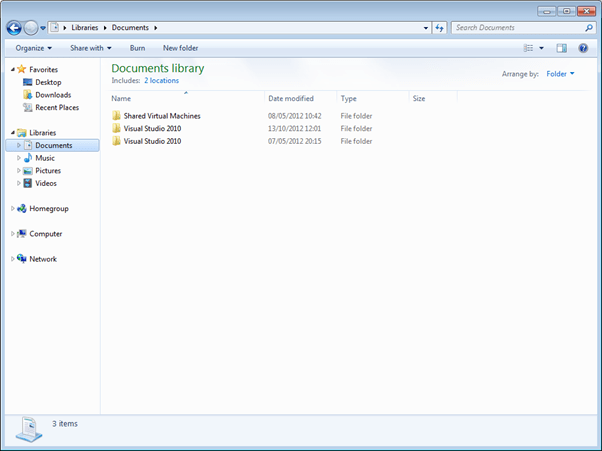
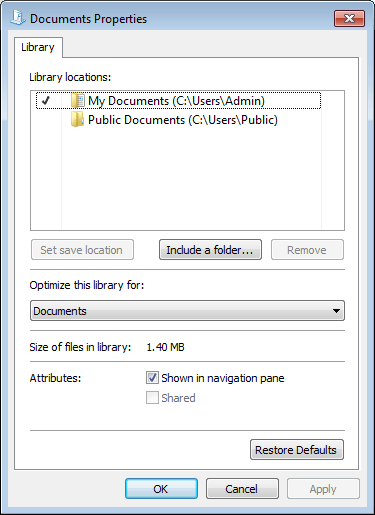
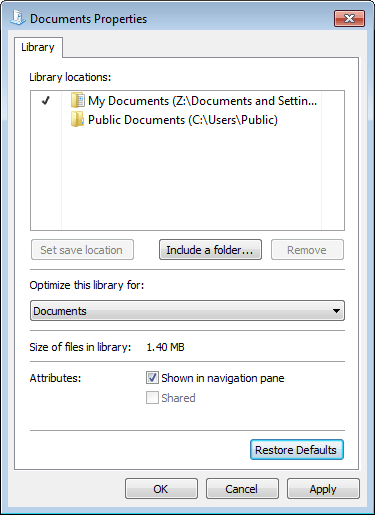
We needed to connect our My Documents to a Linux based NAS device (Netgear NAS) and were thwarted when trying to do so in Windows 7. In order to change the location you need to right click on the documents folder and choose properties, you can then add a new location by selecting the include a folder.. button:

pic1.png

pic3.png

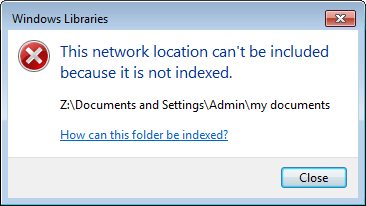
Unfortunately, at this point you receive the following error:

pic2.png

We don’t want to index the location (add as an Offline folder) and we probably couldn’t anyway due to the Linux incompatibility problems.

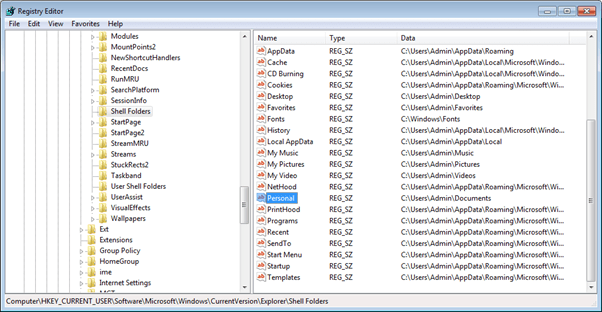
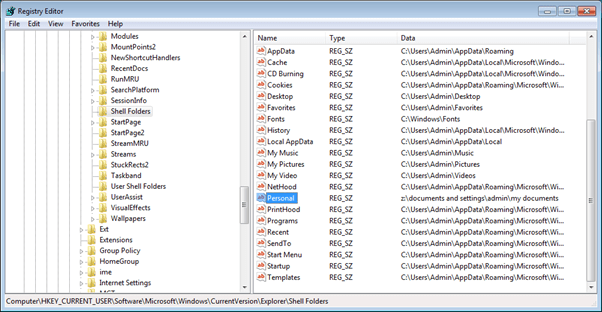
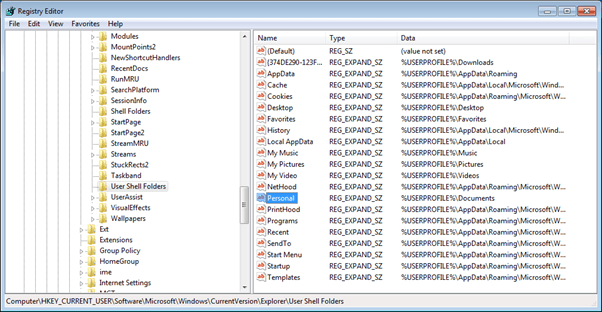
The workaround is to edit the registry. You need to run the Regedit.exe programme and then navigate to and change the following keys:

HKEY_CURRENT_USER\Software\Microsoft\Windows\CurrentVersion\Explorer\Shell \FoldersPersonal

and

HKEY_CURRENT_USER\Software\Microsoft\Windows\CurrentVersion\Explorer\User Shell \FoldersPersonal

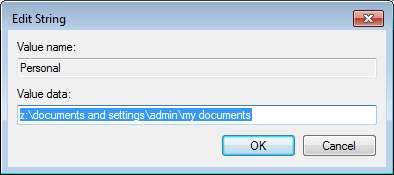
My network location is on a mapped network drive Z:\documents and settings\admin\my documents

pic4

Double click and enter your network location path:

pic5.png

pic6.png

Do the same for the User Shell Folders (User Shell Folders is queried at login first, and uses the %USERPROFILE% variable, Shell folders ar just an expanded form of this – you need to be explicit in both to make sure the network location is used):

pic7.png

Your remote folder can be any path of course – I just like ‘Documents and Settings’ from the XP days 🙂

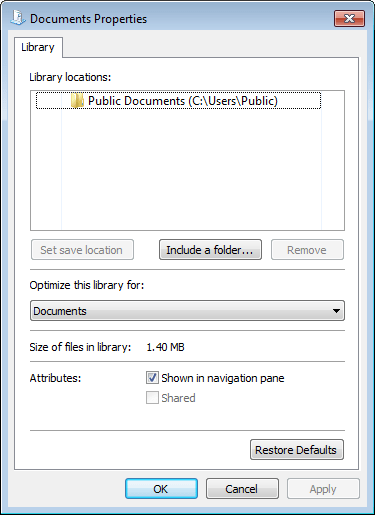
You now need to logoff, logon to reset the locations. When you now go to the documents properties you will see:

pic10.png

Your My Documents has disappeared. Now just hit the Restore Defaults button which will restore the My Documents according to the registry entries:

pic11.png


Windows RDP Keyboard Shortcuts

Just pressing Ctrl+Alt+Del when in an RDP session sends the keystrokes to your local desktop – how do you do Ctrl+Alt+Del in a remote desktop session? Here is how to do it and some other useful keyboard shortcuts:

Ctrl+Alt+End – Equivalent of Ctrl-Alt-Del – Security dialog box is opened where you can lock, log off, change password etc.

Ctrl+Alt+Break – Toggles between full screen and window mode.

Alt+Page Up – Equivalent of Alt+Tab – switches between application windows.

Alt+Home – Equivalent of pressing start menu – opens the start menu.

Ctrl+Alt+plus sign (+) – Equivalent of Print Screen button – copies just the RDP session window not your whole screen.

Ctrl+Alt+minus sign (-) – Equivalent of Alt-Print Screen button – copies just the window that has focus within your RDP session.

Tight VNC and Windows XP Fast User Switching

We use TightVNC for connecting into home workers machines when troubleshooting and came across a problem with one particular user – occasionally we could not connect.

We discovered that their machine was using Fast User Switching – husband and wife who had separate accounts.

When both are logged on e.g. the wife logged on early morning and then our worker logged on later in the day TightVNC was not connecting but when only one of them was logged on it did connect.

What is happening is that the user you’re logging on as is getting assigned a “session” other than session zero, and the TightVNC server is then restoring session zero to the console because that’s the session it’s capable of remoting.

You should be able to fix things by logging off all of the users from the XP system and then re-connecting via TightVNC. We came across no other way around this problem.

DNS Records not updating for DHCP clients

When we setup Microsoft DHCP and DNS servers we found that when client machines obtained new DHCP IP addresses on the local subnet the relevant A and PTR records were not added to the DNS server. This manifested itself when client machines could not be pinged.

Apparently the DNS records are not updated unless a client machine requests it – which does not happen when a new address is obtained.

To change this behaviour:

This is a modified configuration supported for Windows Server 2003-based DHCP servers and clients that are running Windows Server 2003, Windows 2000, or Windows XP. In this mode, the DHCP server always performs updates of the client’s FQDN and leased IP address information regardless of whether the client has requested to perform its own updates.

To configure a DHCP server to register and to update client information with its configured DNS servers, follow these steps:

  1. Open the DHCP properties for the server
  2. Click DNS, click Properties, click to select the Enable DNS dynamic updates according to the settings below check box, and then click Always dynamically update DNS A and PTR records.


Does not print or prints strange characters when using Terminal Server/RDP Easy Print service

We recently upgraded to Windows 2008 R2 terminal services/RDP and started getting reports from Windows XP users that they could not print and were getting error messages or were getting strange characters being printed when using the new Easy Print service.

Easy Print uses the local printer drivers rather than requiring the drivers to be installed on the terminal server – very useful to admins!

To solve this make sure that .NET framework 3.5 is installed.

Made sure that youhave Version 7 of TS client installed on the XP machine.

You can download this from: http://www.microsoft.com/download/en/details.aspx?displaylang=en&id=20609
(Note: even though this is version 7 it shows up as V6.1 under the file version in XP!)

Renamed this file: c:windowssystem32TsWpfWrp.exe to TsWpfWrp_OLD.exe (this was version 3.0.6920.1109 on our XP machines) just as a backup.

Copy a Win 7 version of the file to the same location – latest version we found was 3.0.6920.1201.

This solved both the error coming up and weird characters being printed.

Uninstalling from the Command Line

If a programme is not appearing in add/remove programs goto the following registry location:

HKLMSoftwareMicrosoftWindowsCurrentversionUninstall[name of
application]ModifyPath

If there is no modify path under the applications name then check through each GUID for the programme concerned.

Copy contents to command window and change the /I for a /X if neccessary.

e.g.

MsiExec.exe /I{CDC86F04-DA60-4043-B177-B870CE081040}

The GUID is unique for each programme installed.

Change to:

MsiExec.exe /x{CDC86F04-DA60-4043-B177-B870CE081040}

This should force the programme to uninstall – you can check by seeing if the GUID entry has disappeared.

You can also use this command on any MSI install package including drivers:

e.g.

MsiExec /x ‘c:driversWin_x86_SES_Driver.MSI’


See ms article for MSIExec details:

http://technet.microsoft.com/en-us/library/cc759262(WS.10).aspx

Breakthepaywall 1.3.0 now available

BreakthePaywall! is a free add-on for Internet Explorer 7 or higher using Windows XP, Windows Vista or Windows 7 that simplifies using the various methods for circumventing website paywall restrictions.

NEW Version 1.3.0 now available! – this latest release solves the problems with Microsoft’s August 2011 update for IE which changed the way cookies are stored and also adds functionality for deleting Flash cookies and HTML5 DOM Storage. Go to the download area to install the latest version.

HTML5 Cookies – DOM Storage in IE

HTML5 cookies are the latest threat to your browser privacy.

Like ordinary cookies and Adobe Flash cookies or locally stored objects (LSO’s) they can be used to track your online browsing.

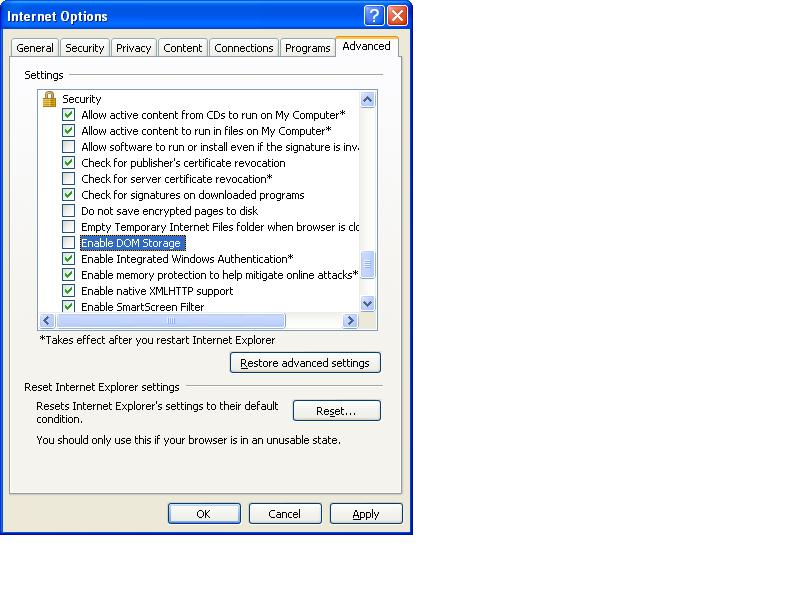
Like flash cookies (see: http://www.islandearth.com/articles/2011/7/22/how-to-block-lsos-flash-cookies.html) you can block them completely within Internet Explorer by unticking this option under Tools, Internet Options, Advanced, Security Section:

DOM_Storage.JPG

The DOM Storage folder is located at:

XP:

c:documents and settings[Username]Local SettingsApplication DataMicrosoftInternet ExplorerDOMStore

Win7:

C:Users[username]AppDataLocalLowMicrosoftInternet ExplorerDOMStore

A good site for checking DOM Storage is: http://www.quirksmode.org/html5/tests/storage.html

How to block LSO’s (Flash cookies)

Traditionally it has been difficult to lock down flash so that locally stored objects (flash cookies) are blocked – LSO’s are not required for flash to work and are purely used for tracking. But, the latest version of Flash has completely changed its privacy system.

It now obeys the browsers settings.

So if you have IE set to delete all content on exit (like I do) the flash cookies will also be deleted.

Good stuff, but this does not prevent flash cookies in the first place – however, you can set flash to block all LSO’s by right clicking, choosing Global Settings and setting block options. This seems to work for all sites I have come across i.e. flash still works and nothing is created.

I assume this change has come about due to the new European privacy laws on cookies coming into force 🙂

Note: if you do not want to block all cookies you still have to use the old method on the Adobe site settings page: http://www.macromedia.com/support/documentation/en/flashplayer/help/settings_manager.html. This is also the only place where you can turn off allowing third party flash cookies – browser settings are not used for this.