BackupExec 2010 SQL Log Alerts

We started getting exception alerts in the BackupExec 2010 job logs when backing up our SQL servers:

Backup – SQL Server
V-79-40960-37914 – Database Database is configured to maintain transaction logs.  Transaction log backups are not being performed.  This will result in the log growing to fill all available disk space.  Regular log backups should be scheduled or the database should be changed to the simple recovery mode.

This was occurring for temporary and test databases that we create occasionally – our production databases are covered by log shipping and mirroring.

We decided to turn these alerts off – this only way to do this is edit the registry on the SQL server:

HKEY_LOCAL_MACHINESOFTWARESymantecBackup Exec for WindowsBackup ExecEngineSQL ServerNumber of Non-Log Backups Before Warning

Set to zero to turn off completely.

See Symantec article on this at: http://www.symantec.com/business/support/index?page=content&id=TECH126063

WMI Event errors in Windows 2008 32bit

We were getting WMI errors in the event log after installing Windows Server 2008 32bit:

Windows Management Instrumentation has stopped WMIPRVSE.EXE because a quota reached a warning value. Quota: HandleCount Value: 4117 Maximum value: 4096 WMIPRVSE PID: 2352

Everywhere we looked seemed to suggest a rebuild of the WMI repository.

But that seemed a bit drastic instead we found that recompiling the MOF files worked. Here’s how:

1. Open a CMD prompt 

2. Change directory: cd%windir%System32WBEM (for X64 use SysWOW64WBEM)

3. Execute the following:

FOR /f %s in ('dir /b /s *.dll') do regsvr32 /s %s
Net stop /y winmgmt
FOR /f %s in ('dir /b *.mof *.mfl') do mofcomp %s
Net start winmgmt

You can just copy from here and paste into the command prompt each instruction in turn.

No more messages received after this.

Idera SQL Diagnostics Manager Mobile Manager

Idera finally came out with a Mobile Manager that works on mobile devices other than a BlackBerry – because they are an American company they concentrated on BlackBerry functionality just when the rest of the world was changing or starting to use iPhones.

I have not used it much yet so cannot give any pros and cons but basically it is a web based tool running as an app on MS IIS which produces web pages enhanced for your particular mobile platform – you would still want to use VPN to access your network first.

Had some problems setting it up though – we were getting an error when trying to load the front screen of the website either via mobile or IE: get a standard HTTP 500 server error.

Turns out we had to tweak the IIS settings slightly. Recommendation from Idera was the following:

Open IIS
Click on server – top level and choose “Modules”
Right click on DynamicCompressionModule and choose “Unlock”
Right click on StaticCompressionModule and choose “Unlock”.
Select the SQLDm website under Sites, Default Website and choose Modules
Right click on DynamicCompressionModules and choose “Remove”
Right click on StaticCompressionModule and choose “Remove”
Restart IIS

We actually changed the default website modules which filtered down automatically to the SQLDm modules – should work for just SQLDm though.

I believe the problem lay with the fact that we also had WSUS installed on the same server and although WSUS is installed as a separate application it makes changes to the IIS global configuration i.e. Dynamic Compression is turned off by default when IIS is installed but WSUS turns it on. This then conflicted with the SQLDm application.


Excel 2010 protected mode trashing my linked workbooks

After installing Excel 2010 on our test network prior to a rollout of Office 2010 across the whole organisation we noticed a problem with linked workbooks when they are opened in Protected Mode.

Protected mode blurb from Microsoft:

By default, Protected View is enabled in Excel 2010, PowerPoint 2010, and Word 2010. However, files open in Protected View only under certain conditions (see below). In some cases, files bypass Protected View and are opened for editing. For example, files that are opened from trusted locations and files that are trusted documents bypass several security checks and are not opened in Protected View.

In our case it became obvious that workbooks which had previously been downloaded from the internet or had been saved from an email attachment were opening in protected view. This seemed sensible to us and did not cause any problems.

However, we rely on a lot of workbooks sent by suppliers which are saved to our network and then have our own workbooks linking to the data within them. When a supplier workbook opened in protected mode and then we opened our own linking workbook all the links to the supplier workbook were trashed.

We setup a test workbook just to work out if there was something corrupt within our own workbooks but, no, we got the same problem. We put together a set of test workbooks and a summary and contacted Microsoft:

Summary:

Opening a workbook may result in it being opened in Protected Mode (Read only due to originally being an email attachment or internet download). If you then open a workbook that was setup to link to it all the links are trashed by inclusion of weird :#REF entry:

e.g.

=’U:JAMES[sub_wb2.xlsx]Sheet1′!$B3

becomes:

='[sub_wb2.xlsx]Sheet1:#REF’!$B3

Opening main workbook first and then double clicking on link works ok (although the initial double click does not go to the linked cell for some reason – subsequent links do). In this case for some reason the workbook is not picked up as needing to be in protected mode!

Response from Microsoft confirmed there was a bug:

I totally understand your concerns here and how it can cause confusion for users. After researching further and testing the issue I can see that all issues including the one you have just highlighted below were explored by the development team during the testing of Excel 2010. However, the development team could not make any changes without breaking other components of Excel and thus a decision was made to postpone a fix and attempt to rectify for future releases. Their statement was as follows:

“Our initial assessment of this request has identified that a correct fix would require redesign work outside the scope of a hotfix cycle. Please know we carefully review all hotfix requests because each code change that we implement must maintain or improve the quality and stability of the product. We strive for this to ensure the continuing integrity of the code base and to maintain a supportable product. While we recognize the impact this issue is having on this customer, we cannot compromise the stability of the product’s code base using the Hotfix process”

I can certainly highlight your case and pass on your comments to the dev team. However, as previous fixes were rejected it will be highly unlikely that it will be possible to resolve this for a future Service Pack release and more than likely will be looked at for the next release of Excel. When researching I could only see three reported issues with Protected View and Link behaviour and it is unfortunate that you have come across all three. As it stands the official guidance is to use the Trusted Locations settings. This can be controlled centrally using Group Policy settings and minimise any I.T overheads.

So Microsoft were not going to do anything about it anytime soon!

Our final response was:

I understand the need to maintain product integrity and that this might mean bug fixes which impact large parts of the product cannot be implemented with a mid-product release via Hot-Fix or Service Pack. However, the seriousness of this bug would, in my view, warrant the extra resources required to produce a fix. It also does not give me great confidence with the entire protected view code if they are of the opinion that any changes will have a major impact on other areas. 

Yes, we could use trusted locations but this does increase the burden on IT and I would rather just switch off Protected View via group policy rather than use something buggy and untrustworthy. Also, it seems to me that having trusted locations negates the whole point of protected view as anyone can then save documents from the internet into the trusted location and these files would then be loaded unprotected – or am I missing something? Also, it does not address the 3rd issue of double clicking a link and the sub document being opened without being put into protected mode when it should be – if trusted locations are being used but a workbook is linked to an untrusted location the sub workbook will open in unprotected view whilst the user will assume it is from a trusted source because that has been set up.

I have not received any further notification that this problem has been fixed and testing still produces the same error.

Solution: don’t use protected view. It can be turned off by going to Excel Options, Trust Center, Protected View and untick all the options within the Protected View section:

Alternatively use group policy to turn it off:

User Configuration, Admin Templates, Microsoft Excel 2010, Excel Options, Security, Trust Center, Protected View:

Note the use of ‘enabled’ to turn this option off – see notes:


Microsoft blurb on protected mode opening conditions:

By default, files open in Protected View if any one of the following conditions is true:

• A file skips or fails Office File Validation Office File Validation is a new security feature that scans files for file format exploits. If Office File Validation detects a possible exploit or some other unsafe file corruption, the file opens in Protected View.

• AES zone information determines that a file is not safe Attachment Execution Services (AES) adds zone information to files that are downloaded by Microsoft Outlook or Microsoft Internet Explorer. If a file’s zone information indicates that the file originated from an untrusted Web site or the Internet, the downloaded file opens in Protected View.

• A user opens a file in Protected View Users can open files in Protected View by selecting Open in Protected View in the Open dialog box, or by holding down the SHIFT key, right-clicking a file, and then selecting Open in Protected View.

• A file is opened from an unsafe location By default, unsafe locations include the user’s Temporary Internet Files folder and the downloaded program files folder. However, you can use Group Policy settings to designate other unsafe locations.

In some cases, Protected View is bypassed even if one or more of the previously listed conditions are met. Specifically, files do not open in Protected View if any one of the following is true:

• A file is opened from a trusted location.

• A file is considered a trusted document.

Relevant links:

http://blogs.technet.com/b/office2010/archive/2009/08/13/protected-view-in-office-2010.aspx

http://office.microsoft.com/en-us/excel-help/what-is-protected-view-HA010355931.aspx



PTR records not being updated when using DHCP

We use DHCP for our desktop connections and noticed that the PTR records (Reverse lookup records) in DNS were not being updated when leases expired in DHCP, resulting in multiple records for the same IP number.

This had not caused any problems until we added monitoring and began remotely managing our desktops – we could not reply on the results as the monitoring was relying on DNS records to update the list of desktops.

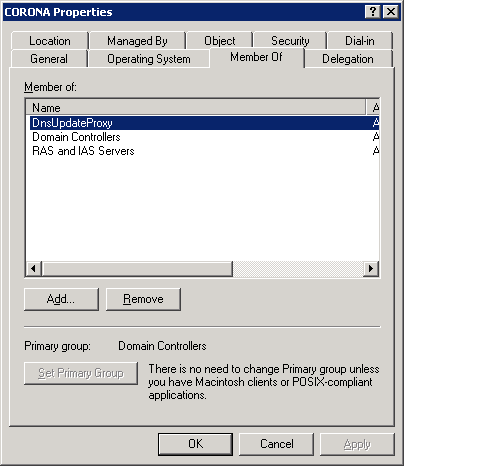
The solution was to add our DNS servers to a special security group called: DNSUpdateProxy. Achieve this within active directory – make the server a member of this security group:

dnsupdateproxy.png

As soon as we did this the PTR records were deleted when the DHCP lease expired.


Getting HP server product code from Insight Manager

We don’t store product codes in our asset database but HP sometimes require it when you call them or access download areas online.

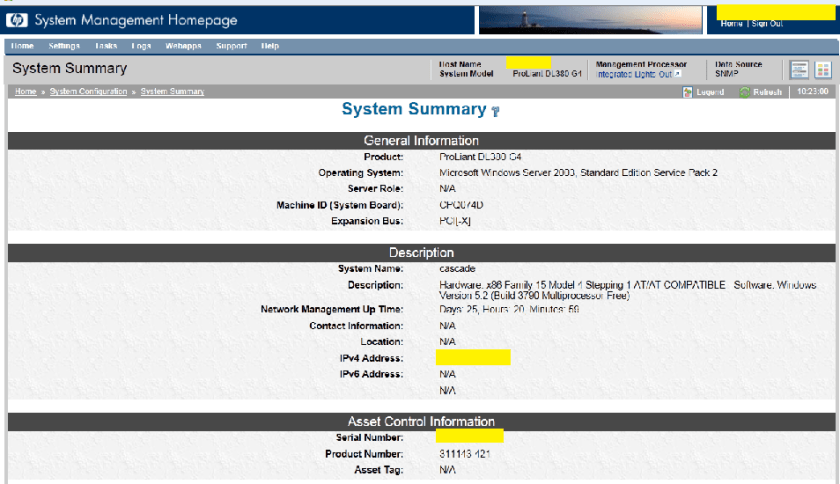
Rather than having to pull the server out of the rack and fiddle about trying to find the product code you can obtain it from the Insight Manager home page.

Go to the Insight manager home page of server, go to system configuration section, select System Summary (select Show All if not shown in the list), the Product code is listed under Asset Control Information section – Product Number:

im_product_code.png

Windows RDP Keyboard Shortcuts

Just pressing Ctrl+Alt+Del when in an RDP session sends the keystrokes to your local desktop – how do you do Ctrl+Alt+Del in a remote desktop session? Here is how to do it and some other useful keyboard shortcuts:

Ctrl+Alt+End – Equivalent of Ctrl-Alt-Del – Security dialog box is opened where you can lock, log off, change password etc.

Ctrl+Alt+Break – Toggles between full screen and window mode.

Alt+Page Up – Equivalent of Alt+Tab – switches between application windows.

Alt+Home – Equivalent of pressing start menu – opens the start menu.

Ctrl+Alt+plus sign (+) – Equivalent of Print Screen button – copies just the RDP session window not your whole screen.

Ctrl+Alt+minus sign (-) – Equivalent of Alt-Print Screen button – copies just the window that has focus within your RDP session.

Tight VNC and Windows XP Fast User Switching

We use TightVNC for connecting into home workers machines when troubleshooting and came across a problem with one particular user – occasionally we could not connect.

We discovered that their machine was using Fast User Switching – husband and wife who had separate accounts.

When both are logged on e.g. the wife logged on early morning and then our worker logged on later in the day TightVNC was not connecting but when only one of them was logged on it did connect.

What is happening is that the user you’re logging on as is getting assigned a “session” other than session zero, and the TightVNC server is then restoring session zero to the console because that’s the session it’s capable of remoting.

You should be able to fix things by logging off all of the users from the XP system and then re-connecting via TightVNC. We came across no other way around this problem.

Changing the colour of a gradient using photoshop elements

Changing the colour of a gradient using photoshop elements (version 5 used):


Whilst designing a website I came across some lovely borders with gradients:

These were not just linear gradients but had been designed to go in corners i.e. the gradient goes round the corner (as in 2nd and last images above).

But I didn’t want red I wanted green. However, if you try and change the gradient colour by reapplying a new linear gradient you lose the corner affect. You can add new gradient layers with different linear angles to create the same effect but that meant you were recreating the whole thing from scratch – all I wanted to do was change the colour.

Here’s how you do it:

1. These were GIF files so I right clicked on the image and chose to open with Adobe Photoshop Elements.

2. Change the colour mode by selecting Image menu, Mode, RGB Color.

3. Choose Layer menu, New Adjustment Layer, Hue/Saturation.

4. Give the new layer a name.

5. Use the sliders to change the colour – you can change the saturation and brightness for different shades but in this case I wanted the same shade just a different colour so I adjusted the Hue to +109 which gave me the green required:

6. Save as a PSD photoshop file so that you can edit again in future.

7. Save as a web file – GIF again: