Cisco ASA Anyconnect VPN per Device IPSECv2 tunnels using certificates – no failover

After we upgraded from Windows XP to Windows 7 we started getting problems with VPN users not being able to connect or weird things happening (random re-boots!).

We then discovered that Cisco did not support the VPN Client using IPSEC tunnels in Windows 7! We apparently had to use the new Anyconnect VPN tunnels and client software.

Our VPN setup is rather different to the standard VPN setup – most IT Managers setup their VPN on a per user basis (particularly with the newer SSL VPNs). That’s all well and good but what happens if they have been using a communal laptop on the road – we have several laptops that are held as a pool for use by anyone. Our staff logon to these laptops as a standard user called ‘User’ and then connect to the company with VPN using their network username and password. What happens if the laptop is lost or stolen? You have no means of revoking access to the VPN for that laptop. This scenario extends to home users as well who may have had their desktop computer stolen in a house robbery. And, most importantly, this scenario is also relevant for mobile devices which we are increasingly connecting to the VPN system.

Rather than live with this problem we prefer to create a separate tunnel group for each device with its own IPSEC shared secret password. When we are notified we can then delete that tunnel group and know without doubt that the device cannot be used to access our network. We are effectively creating a 2 factor authentication solution – something the user has (a company approved device) and something they know (their username and password). This system also has the added advantage of locking down VPN access to company approved devices only – vitally important to keep the nasties out of your company network.

For our VPN system we have 2 Cisco ASA units working in Active/Standby mode – if one unit fails or is brought down for maintenance the other unit automatically kicks in. On Cisco ASA units with the most up to date software the VPN tunnels do not disconnect when this failover occurs, all IPSEC VPN tunnels stay up. This is a fantastic feature for when we need to update software on the ASAs – we can simply failover and work on the inactive unit without having to inform VPN users, then failback and work on the other unit in the same way – no downtime whatsoever. In addition our 2 units are in different geographic locations with a good point to point link between them. This all provides a very robust service – something we really need with so many users these days on the road or home working in various parts of the world.

Therefore, we wanted to replicate this system with the Anyconnect VPN solution and not suffer the problems with the incompatible VPN client software in Windows 7. But we soon came across a major problem.

Anyconnect VPN relies on IKEv2 or SSL which both require the use of certificates from a certificate authority (CA) rather than shared secrets. This is fine as the Cisco ASA contains a CA server component which you can set up to serve certificates to the VPN tunnel groups. Devices then use a separate certificate according to their device tunnel group. We tested this setup on a lone Cisco ASA 5505 unit before moving the configuration to our production ASA 5510 units that are in Active/Standby mode.

And that’s when the problem became apparent – the Cisco ASA software does not support a Certificate Authority on ASA units setup as Active/Standby units. The only suggestion Cisco could make was to use a Windows based certificate authority but that meant extra servers being tied up as CA servers with failover setup between the 2 – not trivial!

In the end we had to give up. As it turned out, Cisco recognised this as a bug which is still active awaiting resolution see: http://tools.cisco.com/Support/BugToolKit/search/getBugDetails.do?method=fetchBugDetails&bugId=CSCsm17487 (You will need a Cisco support username to view this).

In the meantime they did update their IPSECv1 based VPN client to support Windows 7 so we have happily been using that without any problems (current version: 5.0.07.0440) with our IPSECv1 per device VPN setup. However, Cisco have stated that the VPN Client is end of life and will no longer be updated. They recommend you use the Anyconnect client instead – useless advice as we can’t use that becuase of the CA server failover problem!
MSCHAP-v2 for Cisco ASA VPN connections using Radius on Windows Server 2008

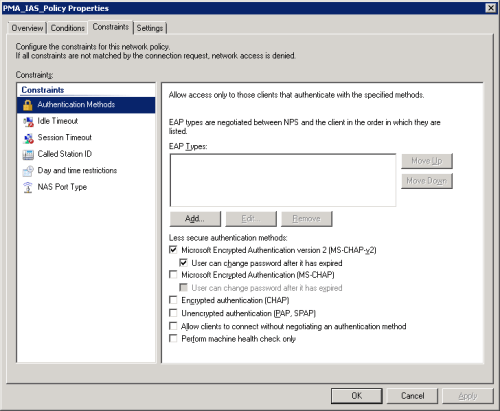
When we upgraded our Windows domain servers to 2008 we found the default authentication methods had changed – PAP/SPAP was no longer enabled by default:

radius.png

Consequently our VPN users could not connect as it turned out they were using PAP/SPAP by default.

We wanted to MS-CHAP-v2 for obvious security reasons so we needed to find out how to change our VPN tunnel groups on the Cisco ASA unit to use the stronger authentication method.

Within each tunnel group:

Configuration -> Remote Access VPN -> IPSEC (IKEv1) Connection Profiles (or whatever type of VPN you use)

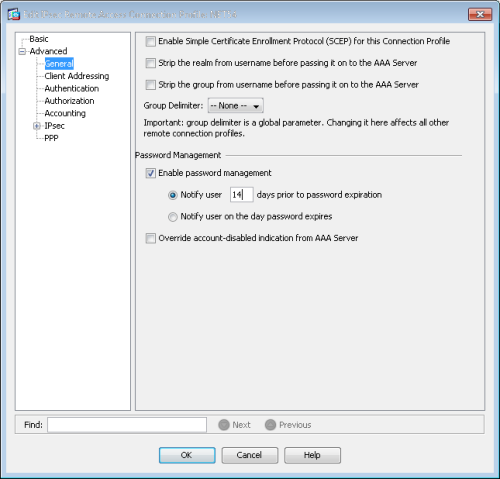
Under Advanced -> Password Management

Enable the password management option:

password_mgmt.png

You can also set the password expiration notification here if you use that on your network – this is the Active Directory password expiration i.e. you are prompted every so often to change your network password. If you have users that are permanently on VPN connections then this can be set to warn them well before their expiration so that your IT team does not get calls regarding passwords not working 🙂

The Password Management turns on MS-CHAP-v2 for your VPN connections so you can keep your Radius servers using MS-CHAP-v2 only and ensure you are using the strongest authentication on your VPN connections.

NOTE: Once MS-CHAP-v2 is working you will notice that a extra box appears for domain in your VPN Client logon dialog box – you should enter your Windows Active Directory root domain in this box.


Keyboard shortcuts for dual monitor setups

We recently changed over to using 2 monitors on most of our desktops.

This is a really useful feature which allows you view a window on one monitor whilst viewing another window on another monitor e.g. Word document on 1st monitor, internet explorer on the other.

Moving from one monitor to the other is simple – just drag your mouse pointer between monitors or drag and drop a window. It effectively extends you desktop over 2 monitors – or more if you have graphics cards that support it (you need a graphics card with dual monitor capability and/or a cable splitter offering 2 monitor connections).

Here are some keyboard shortcuts we picked up whilst using the 2 monitor setup:

  • To resize a window to go to half size on the right or left of the monitor (same as dragging window all the way to the left or right of monitor), you can use Windows Key + Left/Right Arrow. (Windows key is one between Ctrl & Alt).
  • To Maximise a window, Windows Key + Up arrow and to return window back to size it was before (or to minimise from a non-full screen window), Windows Key + Down arrow.
  •  To move your active window to the other monitor, you can use Windows Key + Shift + Left/Right arrow. 
  • Also, less likely to be useful but if for any reason you want to temporarily switch back to one monitor, or duplicate your main monitor onto the second monitor, you can use Windows Key + P.  This toggles between:


Computer Only – Uses main monitor only

Duplicate – Duplicates main monitor onto both monitors

Extend – Extends desktop across both monitors (normal operating mode)

Projector Only – Uses second monitor only


Turning off Thumbnail caching in Windows

I have become increasingly annoyed by the Thumbnail caching in Windows particularly when using network drives.

This default function of windows supposedly makes viewing thumbnails (small pictures of a larger picture) faster – if you change your view settings to view hidden files you will notice ‘thumbs.db’ files dotted around your folders. This file contains a cache of the thumbnails so that they do not need to be created everytime you view a folder full of photos.

If, like me, you hardly use the thumbnail view – being an oldie I prefer details view instead – you find the thumbs.db file stops you from renaming and deleting folders you just created on network drives. This is because the Windows Explorer process locks the thumbs.db file continuously.

You can turn off this functionality by editing the local group policy:

  • Click the Start orb
  • Enter gpedit.msc in the search box and hit Enter.
  • Expand User Configuration – Administrative Templates – Windows Components.
  • Click on Windows Explorer.
  • Right-click the entry “Turn off the caching of thumbnails in hidden thumbs.db files” and choose Edit.
  • Enable the setting.


BT Broadband Web Help DNS takeover – IP: 92.242.132.15

We recently came across a problem with a users VPN connection – they could connect to VPN but when they tried to resolve any addresses on the corporate network side they resolved to an external IP address.

It turned out that the IP address in question was on the BT Broadband network.

It seems a number of other people have experienced similar problems:

http://community.bt.com/t5/BB-Speed-Connection-Issues/DNS-oddity/td-p/49653

A service called BT Web Help was getting in the way – any addresses that did not resolve were picked up by the BY DNS servers and a different address was returned. This address resolves to an advertising page from Yahoo and others.

This is similar functionality to OpenDNS – if an address does not resolve OpenDNS redirects you to a search page with sponsored links. That’s how OpenDNS get some money to keep their excellent free service up and running.

I don’t feel like helping BT to monetise DNS so I suggest you do the following to circumvent BT’s desire to interfere with your Internet connection:

1. Disable the web help function by visiting this page: http://preferences.webaddresshelp.bt.com/selfcare/preferences.cgi

Select Disable and Save.

2. Replace your BT router with a third party router – I always use Netgear (remember to keep your old BT router as, for some reason, they demand to have it connected when troubleshooting). The BT routers may be doing something odd to bounce the DNS connection back – I have not seen BT Web Help work when using a Netgear router set to use ISP supplied DNS servers.

3. Use a third party DNS service like OpenDNS – it’s free and you simply set the DNS entries on your router to OpenDNS servers to get going (they also provide a free filtering service if you so desire).


My Outlook 2010 address checking settings

I don’t know about you but i get very annoyed by Outlook’s address autochecking features – especially on my work machine which is connected to an Exchange server.

I find that it incorrectly assigns the wrong contact automatically and I have sent emails to the wrong contact on many occasions. This is mainly due to it assuming that the last contact you sent to must be the one you want to send to now. This means the dialog box that used to pop up in Outlook 2003 to confirm which duplicate user to send to is no longer valid as it has already resolved the contact – not what I want to do!

Here’s how I set my Outlook up:

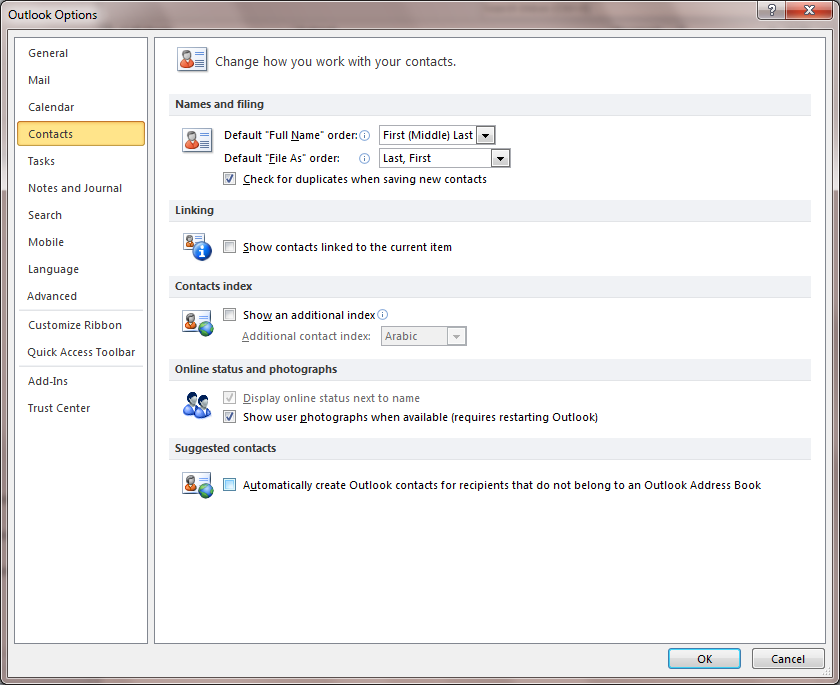
Turn off suggested contacts located under Options (click on the file menu and choose options from the left), Contacts section:

outlook1.png

Untick ‘Automatically create Outlook contacts…..’

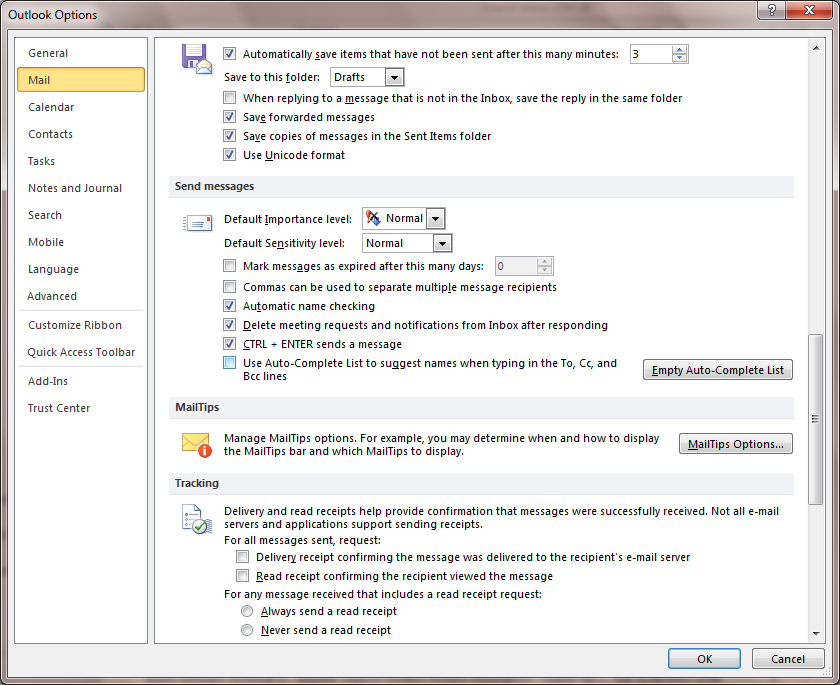
Next, Turn off AutoComplete under Options, Mail, Send Messages section:

outlook2.png

Untick the ‘Use Auto-complete list to…..’

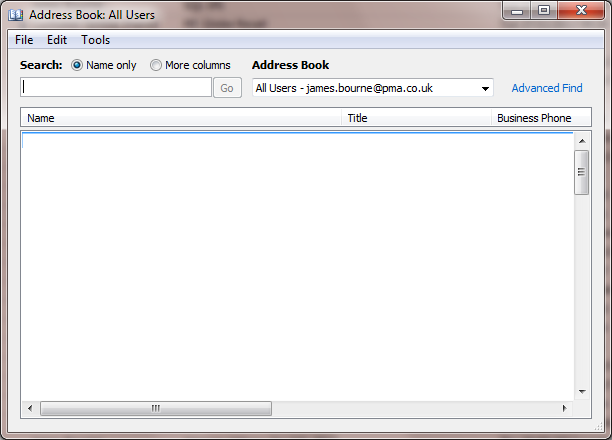
Next, goto the Address Book from the Home menu:

outlook3.png

Goto Tools, Options and make sure you only have All Users set:

outlook4.png
I find these settings ensure happiness 🙂

Addendum:

If you have already been using Outlook for some time then you should do the following as well:

In addition you should clear your suggested contact address books – goto contacts, select Suggested Contacts, Select all and right click and delete.

Also, it was pointed out to me that you should clear the Outlook cache by starting outlook from the Start Run menu like this:

Outlook.exe /clearautocompletecache

Setting documents folder to network location in Windows 7

I believe changing your My Documents folder from the default system drive location to a network drive location is possible when the remote location is a Windows server file share. However, trying to connect to a NAS drive that might be based on Linux does cause problems.

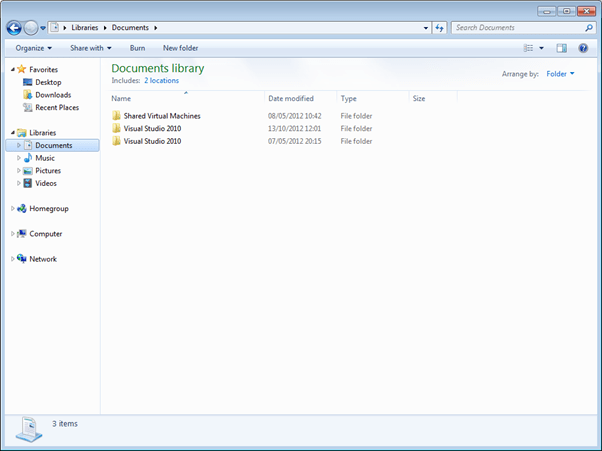
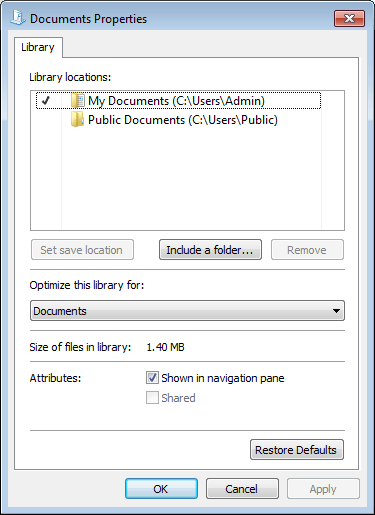
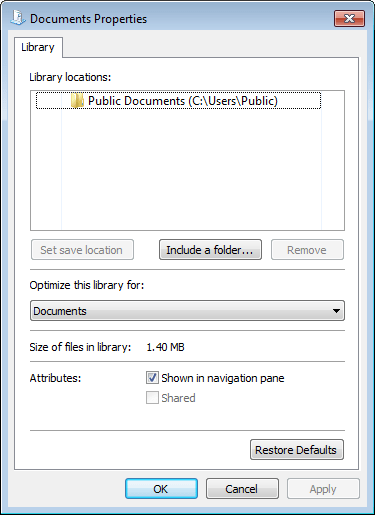
We needed to connect our My Documents to a Linux based NAS device (Netgear NAS) and were thwarted when trying to do so in Windows 7. In order to change the location you need to right click on the documents folder and choose properties, you can then add a new location by selecting the include a folder.. button:

pic1.png

pic3.png

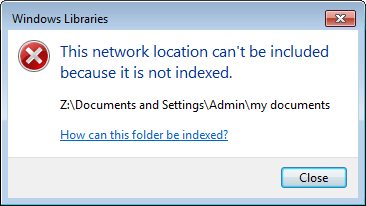
Unfortunately, at this point you receive the following error:

pic2.png

We don’t want to index the location (add as an Offline folder) and we probably couldn’t anyway due to the Linux incompatibility problems.

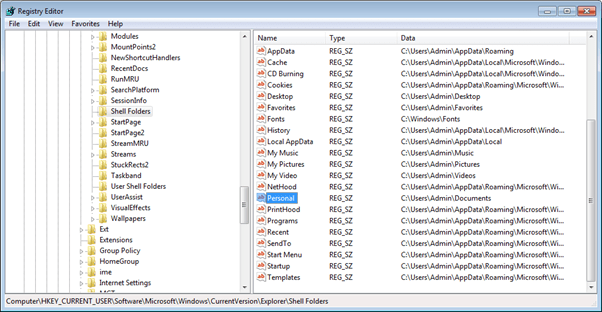
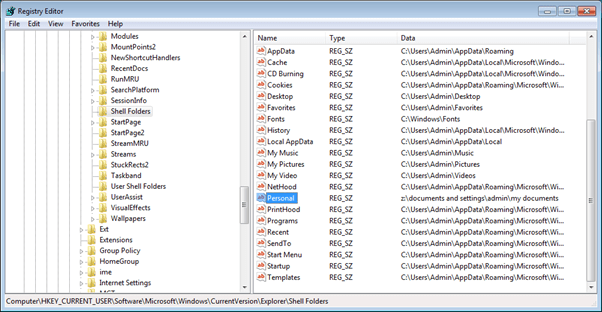
The workaround is to edit the registry. You need to run the Regedit.exe programme and then navigate to and change the following keys:

HKEY_CURRENT_USER\Software\Microsoft\Windows\CurrentVersion\Explorer\Shell \FoldersPersonal

and

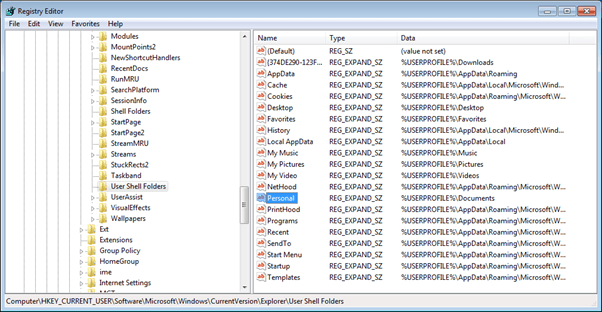
HKEY_CURRENT_USER\Software\Microsoft\Windows\CurrentVersion\Explorer\User Shell \FoldersPersonal

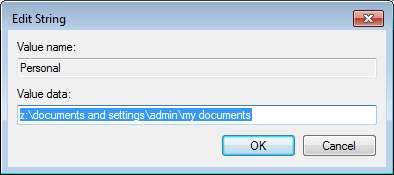
My network location is on a mapped network drive Z:\documents and settings\admin\my documents

pic4

Double click and enter your network location path:

pic5.png

pic6.png

Do the same for the User Shell Folders (User Shell Folders is queried at login first, and uses the %USERPROFILE% variable, Shell folders ar just an expanded form of this – you need to be explicit in both to make sure the network location is used):

pic7.png

Your remote folder can be any path of course – I just like ‘Documents and Settings’ from the XP days 🙂

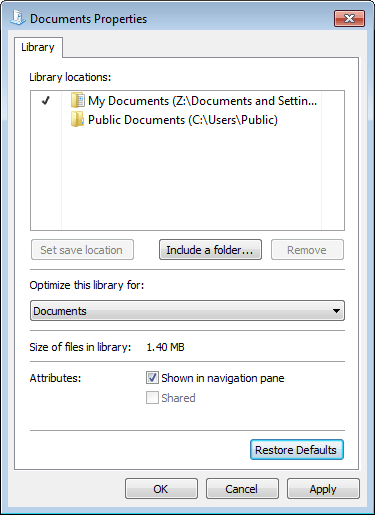
You now need to logoff, logon to reset the locations. When you now go to the documents properties you will see:

pic10.png

Your My Documents has disappeared. Now just hit the Restore Defaults button which will restore the My Documents according to the registry entries:

pic11.png


Exporting a boundary map from Google maps in KML format

You’ve used Google maps excellent editing tools to create a boundary on your map but now you want to export it into another mapping package.

Google maps use KML files for importing but there is no obvious exporting option.

To achieve this open your map in My Maps and then select the Link button – next to the Printer button.

Right click the URL and select copy.

Open up a new browser tab and right click the address bar and select paste but don’t hit enter.

Look for the parameter ‘&output=’ – if it does not exist add it to the end of the URL after all the other parameters. Either change or set it to equal ‘kml’ i.e. &output=kml

Hit enter – you will now be prompted to open or save as. Choose save and you can now download to a KML file locally.


Getting rid of your primary Outlook account

During our recent migration to Exchange Online in Office 365 we had to manually export our old mailbox to a PST file and import to the new mailbox.

This involved creating a new account within the users Outlook profile, doing the export and import, making sure the new mailbox synched to the cloud mailbox, switching our email delivery (MX records) over to Office 365, copying any emails that had arrived in the old mailbox since the PST import and then delete the old mailbox account. Pheww!

As you can imagine that took some time even for the modest 7 users that we had. So it really annoyed me when I discovered that at the last stage Outlook informed me that the old mailbox could not be deleted until all other accounts were deleted because it was the primary account and even more annoyed when I discovered that the Primary account cannot be switched.

But we sorted it out in the end:

Close Outlook

Rename the mailbox OST files which can be found under c:usersusername….AppDataLocalMicrosoftOutlook

Delete the new mailbox account from settings (Control Panel, View by Small Icons, Mail).

Create a temporary outlook data file under the data files tab (Outlook will not delete the primary account until you have an alternative data file present).

Delete the old mailbox primary account.

Add the new mailbox again.

Start Outlook.

Outlook will create a blank OST file – immediately exit Outlook as there is no need to sync up again.

Delete the newly created OST file.

Rename the new mailbox OST file back to the original name.

Start Outlook

Your mail will re-appear and the new mailbox will be the only account present and therefore the Primary account in Outlook.

Remember the delete the temporary outlook data file you created otherwise this will continue to appear in your outlook folder lists.

NOTE: you can of course create separate profiles in Outlook and swap between the 2 and this would be the prefered method of achieving a migration if auto synching of mailboxes was available but we needed to view both mailboxes side by side so that any new email arriving during the cut over period could be easily copied to the new mailbox from the old.