
Desktop version of IE broken after upgrading to Windows 8.1

Just upgraded my Surface Pro to Windows 8.1 at the weekend and had problems with desktop version of IE.
 
The 8.1. upgrade updates IE to version 11 from version 10 and by default Enhanced Protected Mode is switched on – even if you had it off in IE10 (default for IE10 was off).
 
After upgrading when I first started IE I got messages about add-ons being incompatible with Enhanced Protected Mode and I couldn’t do anything, browse the web or get options up.

Managed to get into Internet Options via Control Panel and noticed in Manage Add-ons that various add-ons including Lastpass, Evernote and even MS add-ons were listed as incompatible.
 
MS confirmed that this is switched on by default in IE11 but that not all add-ons including their own will be compatible.

I uninstalled any addons programmes I knew about, reset the settings for IE, unticked Enhanced Protected Mode (Internet Options, Advanced tab, Security section). Everything was then ok so I re-installed my add-on programmes.

I did a bit of additional testing – latest version of Lastpass was ok with enhanced protected mode switched on but latest Evernote (V5.0.2) was not.

So looks like best thing to do for now is switch Enhanced Protected Mode option off.

My test version of BreakThePaywall for Windows 8 was listed as disabled in Enhanced Protected Mode – this was almost ready for release but looks like I will have to make it compatible with Enhanced Protected Mode first. (http://www.breakthepaywall.com). Will try and get this rolled out before they release IE11 on Windows 7 as well.
Exchange 2010 migration – contacts all have additional email addresses in company domain

After migrating to Exchange 2010 from 2003 we discovered that all the external contacts from the Global Address List (GAL) migrated ok but they all had an extra email assigned with our servers domain.

For example: trevor@citycorp.com would have an extra smtp address attached of trevor@mydomain.com

In addition any new contacts also had the additional email attached.

Which isn’t ideal so we looked into changing it and came up with a powershell script that would delete the extra emails and prevent them being added again:

####
# Input variables
####
$domains = @(“*@mydomain.com“)
$ou = “myactivedirectorydomain”

####
# Removing internal domains from contacts
####
$domains | foreach {
$domain = $_;
write-host “Preparing for removal of addresses with domain name:” $domain
$Contacts = Get-MailContact -OrganizationalUnit $ou -Filter {
                EmailAddresses -like $domain -and name -notlike “ExchangeUM*”
            } -ResultSize unlimited -IgnoreDefaultScope
$Contacts | foreach {      
    $contact = $_;
    $email = $contact.emailaddresses;
    #write-host “1. ” $contact
    #write-host “2. ” $contact.name
    #write-host “3. ” $email
    #write-host “4. ” $contact.identity
    $email | foreach {
        if ($_.smtpaddress -like $domain)
            {
                $address = $_.smtpaddress;
                write-host “[*] Removing address” $address “from Contact” $contact.name;
                Set-Mailcontact -Identity $contact.identity -EmailAddresses @{Remove=$address};

            }

    }
}
}
####
# Setting up email address policy to disabled for all contacts
####
write-host “Preparing all contacts for disabling email address policy”
$Contacts = Get-MailContact -OrganizationalUnit $ou -Filter {
                EmailAddresses -like $domain -and name -notlike “ExchangeUM*”
            } -ResultSize unlimited -IgnoreDefaultScope | Where {$_.EmailAddressPolicyEnabled  -eq $true}
$Contacts | foreach {
    $contact = $_;
    write-host “[*] Setting up email address policy to disabled for” $contact.name
    $contact | set-mailcontact -emailaddresspolicyenabled $false
}

The first part of the script cycles through the contacts deleting the emails with the domain set in the $domains variable – replace ‘mydomain.com’ with your own domain and change the $ou to the correct active directory domain and out e.g. adroot.mydomain.com

The second part changes the default email policy which is what causes the extra smtp addresses to be added.

If you add new contacts via console then you do not need to run this again as you would not apply the default email policy but if you are adding contacts using an older script you may experience this problem and would therefore have to run again – perhaps on a scheduled basis.

Nice one Microsoft {:-|

WSUS Forcing reporting, downloading and installing using powershell

——————————————-

# Powershell Script to force clients check into WSUS server

# Import Active Directory PS Modules CMDLETS
Import-Module ActiveDirectory

$comps = Get-ADComputer -Filter {operatingsystem -like “*server*”}

$cred = Get-Credential

Foreach ($comp in $comps) {

Invoke-Command -computername $comp.Name -credential $cred { wuauclt.exe /detectnow }
Write-Host Forced WSUS Detect on $comp.Name

Invoke-Command -computername $comp.Name -credential $cred { wuauclt.exe /reportnow }
Write-Host Forced WSUS Report-In on $comp.Name

}

——————————————-

You can change “*server*” to “*” to invoke on all systems.

No outgoing email after Exchange 2010 Service Pack 3 Rollup 1 installed

We like to keep our servers up to date so after testing in our VM environment we went ahead and installed the latest update rollup for Exchange server 2010 from Microsoft.

Everything went smoothly but afterwards we soon realised that no email was going out – no bounceback no message nothing, it just dissappeard!

It turned out to be a problem with out Disclaimer. Like most companies we add a disclaimer to every email sent outside the organisation. Because of this additional step on the server all these outgoing emails were seen as ‘poisoned’ and were dropped.

Obviously, this is something rather difficult to test for and after looking on a number of forums many Microsoft customers had suffered a similar fate.

Microsoft were looking into it and would be providing an update but in the meantime we had to turn off our disclaimer adding and ask out users to add them manually for now.

After opening a support call with Microsoft it transpired that a Hotfix was available. We downloaded, tested and rolled it out and disclaimers are now working. Please bear in mind that if you need to install a rollup in the future this Hotfix has to be uninstalled before proceeding.

In other words Microsoft won’t release a new update intil the next rollup despite the severity and will only supply a hotfix on request. Not very impressive.

Here is the relevant article and details of hwo to obtain the hotfix: http://support.microsoft.com/kb/2859596/en-gb


Using RUNAS command to gain Admin access when logged on as limited user

You can temporarily logon as an Administrator without having to logoff or switch user.

From command prompt use the following command:

C:WINDOWSsystem32runas.exe /user:yourdomainyouradminuser “cmd.exe /k cd C: && color 0e && title ***** Admin console ***** && CLS”

I like to put this in a batch file and then create a shortcut to it on my desktop.

Once run you will be prompted for the admin users password.

Once entered you will get a Yellow C: prompt – you now have admin privileges and can run programmes as an admin user e.g. type Explorer to run Windows Explorer.

Of course you can create batch files to open specific programmes:

runas /user:yourdomainyouradminuser “regedit”

Would prompt you for password and then open the registry editor as admin user.

You may find that this appears to work but you still do not have admin rights. In this case edit the registry as follows:

HK_CLASSES_ROOTAppID{CDCBCFCA-3CDC-436f-A4E2-0E02075250C2}RunAs

to

HK_CLASSES_ROOTAppID{CDCBCFCA-3CDC-436f-A4E2-0E02075250C2}_RunAs

You will need to be properly logged on as admin user to achieve this registry change.

Cisco VPN Client with Windows 7 and 3g datacards – WWAN support

When we upgraded to Windows 7 we found that our laptops would not connect to our VPN over 3G Datacards using the Cisco VPN Client.

This is due to the Cisco VPN Client software not supporting WWAN devices. Initially we were stunned to learn that the latest VPN Client wasn’ compatible with Windows 7! Subsequently they did release a version – we currently use version: 5.0.07.0440. But at the same time they announced that the VPN Client was end of life and that you should be using the AnyConnect client instead (that’s a whole different story see: http://www.islandearth.com/articles/2013/5/2/cisco-asa-anyconnect-vpn-per-device-ipsecv2-tunnels-using-ce.html)

This meant that WWAN was never going to be supported in the Cisco VPN Client and we could not upgrade to AnyConnect VPN due to our reliance on IPSECv1 VPN Tunnels (see article above).

After much searching we managed to find a solution:

http://community.spiceworks.com/topic/143383-solved-problem-using-cisco-vpn-client-when-connected-over-3g

The problem is apparently to do with a limit on Citrix DNE instrumentation measuring! Quite how this makes the VPN Client work with WWAN cards is beyond me but it does!

Powerpoint slides not displaying correctly in older versions

When we started using Powerpoint 2010 some of our users started reporting problems when displaying them at presentations using client equipment.

This particularly affected slides with charts – text on axis would be scrunched up, some series lines or bars would disappear etc.

We did some testing and discovered that using older versions of Powerpoint or powerpoint viewers or using compatability pack could not guarantee that the slides would always display correctly.

We had to issue a policy of:

Making sure clients had PowerPoint 2010 or had the Microsoft PowerPoint 2010 Viewer installed. (The 2010 Compatibility pack is not good enough).

Or

Take our equipment for use at the presentation.

However, we also worked on a solution and found that if the charts were converted to images then the problems did not re-occur.

What you have to do is:

  • Right click on the chart object within the slide and choose cut
  • Then choose Paste Special and choose Picture as the paste option – you may then need to move the image around a bit to the correct position.
  • Save the presentation with a new name

Eventually we created a Powerpoint macro and attached it to a Powerpoint button. The macro would cycle through the entire presentation and convert any chart objects to pictures and then save it as a image only presentation – get in touch if you require this?


Powerpoint crashing when breaking links

We have users who have powerpoint presentations linked to excel files – as worksheet links to a range of cells that includes an Excel chart object. This creates their standard slides for use in presentations, they then copy these slides to bespoke presentations for particular clients. So as we can supply the presentation to the client the links are broken so that the slide is just a standalone image.

This all worked ok but after we upgraded to Office 2010 powerpoint crashed when the links were broken.

This was our submission to Microsoft support:

You have a PowerPoint presentation containing charts linked to Excel files.

When you copy slides containing this kind of chart into a new PowerPoint presentation and then break the links, this new PowerPoint presentation stops responding.

Steps to reproduce:

  1.  copy a chart and the surrounding data from an Excel file
  2. paste it into a PowerPoint presentation with Paste Special -> Paste As Microsoft Excel 2003 Worksheet Object
  3. go to Slide Sorter view
  4. copy the slide containing the chart from this PowerPoint presentation to a new presentation
  5. go to File – Edit Links and break the link
  6. at this point the second PowerPoint presentation will stop responding

Microsoft admitted this was a bug and 5 month’s later {:-| they released a Hotfix!

KB article and fix can be found here: 

http://support.microsoft.com/kb/2597145


Powerpoint crashing – display issue, hardware acceleration

After upgrading to Office 2010 we had a number of issues with Powerpoint 2010 one of which was to do with random crashing which appeared to be something to do with the graphics system (Powerpoint Graphics engine was completely rewritten for this version).

We tracked it down to hardware acceleration which has been turned on in Office 2010 to improve graphics performance.

Firstly make sure your graphics cards drivers are up to date – you obviously want to use hardware acceleration if you can!

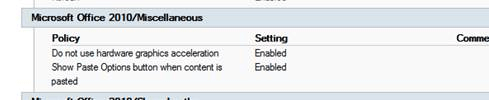
You can disable hardware acceleration by using group policy or within Powerpoint options.

Group policy:

office 2010 ha.png

User ConfigurationPoliciesAdministrative TemplatesClassic Administrative TemplatesMicrosoft Office 2010MiscellaneousDo not use hardware graphics acceleration

Powerpoint options:

Goto File menu, Options, Advanced, Under Display section tick Disable Hardware Graphics Acceleration option

We needed activate this setting via Group Policy as this problem was particularly acute on our terminal server so it needed to be set for all users.


Cisco ASA not connecting to the Internet – static route setting

We had to setup a new Cisco ASA 5505 unit on a separate connection – mainly as a backup but also for testing purposes.

We set everything up correctly according to our notes for our primary ASA 5510 units (the interface and software for the 5505 is exactly the same as that for the 5510). But we could not connect to the internet through the ASA – firewall ACL rules were all ok and everything seemed fine but logging showed it was dropping packets destined for outside the LAN.

It turned out that we had forgotten to setup what is probably the most important parameter on the Cisco ASA units – the static route to the next hop router i.e. our ISP’s router!

If you use the ASDM initial configuration Wizard to setup the ASA you don’t get this problem as the next hop question is asked during this process.

To set the static route in ASDM go to:

Configuration -> Device Setup -> Routing -> Static Routes

Add a static route:

cisco_staticroute.png
        

Where Gateway IP is the IP address of your ISP’s router.